
For better Nivalis Nights performance, lower the overall graphics preset first, update your graphics driver, close background applications and overlays, and test changes along the same in-game route. Laptop players should also connect AC power, select Windows Best Performance mode, and confirm that the game uses the dedicated GPU. These steps can improve ordinary graphics-related slowdowns, but crowded districts may remain substantially heavier than apartments and quieter areas.
This guide reflects the Steam launch build available on October 1, 2026. Performance can change with later patches. The launch version has no built-in DLSS, FSR, or other upscaling option, so do not spend time looking for an upscaling toggle that is not present. The listed PC targets also assume native resolution and an SSD.
Match your PC to the official performance targets
Start by comparing your hardware with the intended resolution, frame rate, and preset. The minimum and recommended specifications describe different targets; simply meeting the minimum specification does not imply 60 FPS or high settings.
| Target | Minimum specification | Recommended specification |
|---|---|---|
| Operating system | Windows 10 64-bit | Windows 11 64-bit |
| Processor | Intel Core i5-11600K or AMD Ryzen 5 3600 | Intel Core i5-13600K or AMD Ryzen 5 7600 |
| Memory | 16 GB RAM | 16 GB RAM |
| Graphics | NVIDIA GTX 1660 SUPER or RTX 3050, AMD RX 6600, or Intel Arc A750, with 6 GB VRAM | NVIDIA RTX 4070 or AMD RX 7800 XT, with 12 GB VRAM or more |
| Intended result | 1080p, 30 FPS, Very Low preset | 1440p, 60 FPS, High preset |
| Rendering assumption | Native resolution, no upscaling | Native resolution, no upscaling |
| Storage | 42 GB available space on an SSD | 42 GB available space on an SSD |
The minimum laptop reference is an RTX 4050 Laptop GPU with 6 GB VRAM. The recommended laptop references are an RTX 4080 Laptop GPU or RTX 5080 Laptop GPU with at least 12 GB VRAM. Mobile GPUs perform below their similarly named desktop counterparts, so compare against the laptop references instead of assuming that a matching model number guarantees desktop-level results.
Treat every target as a guide rather than a guarantee. Drivers, active applications, power limits, thermal conditions, selected settings, and the area being rendered can all change the result. If your system is close to the minimum specification, begin with the stated 1080p, 30 FPS, Very Low target before attempting a higher frame rate or resolution.
Build a repeatable performance baseline
Changing several options while moving through different districts makes it difficult to identify what helped. Establish a simple baseline before adjusting anything.
- Restart the game and load the same save each time.
- Choose a short route that includes both a relatively quiet interior and a populated exterior area. Apartments and some quiet locations can run much better than the busy area around the first shop.
- Follow the same route, look in the same directions, and spend roughly the same amount of time in each scene.
- Record the preset, resolution, frame rate range, and the point at which stutter or a major drop appears.
- Change one category at a time, repeat the route, and keep the new value only when it produces a meaningful improvement.
The game provides several graphics presets as well as individual graphics controls. Begin with the preset because it gives you a clean, coherent starting point. If performance is poor on High, move down one preset and repeat the route. Continue until the result is usable, then fine-tune individual settings if necessary.
Avoid judging a change from an apartment alone. A setting that looks successful in a quiet room may still struggle when the game has to display a busy district, many shops, or numerous characters. The heavier scene should determine whether the configuration is stable enough for normal play.
Apply fixes in a controlled order
Use this order to separate configuration problems from the launch build’s heavier scenes.
1. Update the graphics driver
Install the latest driver available for your NVIDIA, AMD, or Intel graphics hardware, then restart Windows. A driver update is one of the first recommended checks when the game does not run as expected. Restarting matters because the active driver and related services may not be fully refreshed until Windows reloads them.
2. Close background applications and overlays
Close applications that are not needed while playing, especially programs that consume GPU resources, memory, or processing time. Disable nonessential overlays for the test as well. Run the baseline route again before changing the game’s graphics options; this shows whether another application was contributing to the problem.
3. Lower the complete graphics preset
Move the graphics preset down one level and retest. This is the primary in-game performance recommendation and is more reliable as a first step than changing a random collection of individual settings. Players near the minimum specification should use Very Low as the reference point for the official 1080p and 30 FPS target.
4. Adjust individual settings only after the preset
Once a preset is close to acceptable, change individual options one at a time. Keep notes or screenshots of the original values so that you can reverse a change that does not help. The available evidence does not establish one universal “best settings” combination for every GPU, so a controlled comparison is more useful than copying an unsupported preset.
5. Verify the game files
In Steam, right-click Nivalis Nights, open Properties, select Installed Files, and choose Verify integrity of game files. This check is appropriate when performance changes unexpectedly, the game behaves differently after a relaunch, or ordinary settings changes do not explain the problem.
6. Restart the game and the PC
Restart the game after changing drivers or diagnosing unusual behavior. If the issue persists, restart the PC as well. This clears a temporary bad session without requiring changes to saves, mods, or unrelated game systems.
Read scene-specific drops correctly
Nivalis Nights does not place the same load on the PC in every location. Quiet apartments and some areas may hold a much better frame rate, while populated commercial spaces can drop sharply. This variation means a single frame-rate reading is not enough to characterize performance.
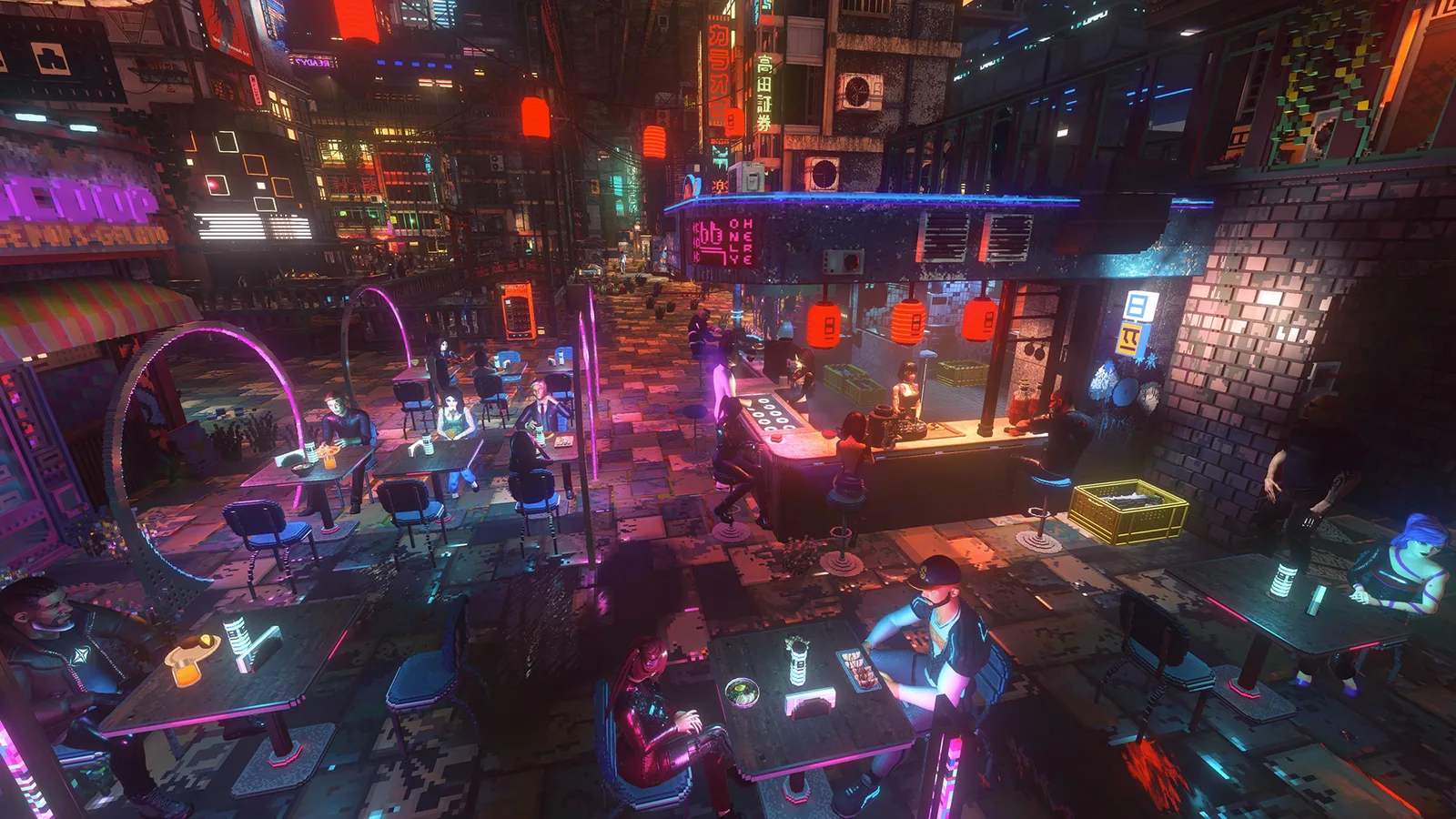
When a lower preset improves every part of the baseline route, the graphics configuration is contributing to the slowdown. Keep the lower preset and tune from there. When quiet interiors improve but a crowded area still drops heavily, treat the remaining problem as scene-specific. Further image-quality reductions may offer diminishing returns rather than eliminating the drop.
This distinction is particularly important when changing resolution. Lowering resolution usually reduces the amount of image work required, but it cannot guarantee a stable frame rate when the costly part of a scene lies elsewhere. In one launch-build Steam Deck report, reducing the resolution as far as 320×200 still did not restore 30 FPS in the crowded early-game area. That is a limited handheld result, not a universal PC benchmark, but it demonstrates why resolution alone should not be treated as a guaranteed fix.
Use the following diagnostic pattern:
- Poor performance everywhere: confirm the hardware target, driver, power mode, active GPU, background applications, preset, and resolution.
- Good performance indoors but large drops in crowds: optimize against the crowded test scene and expect a lower stable target than the quiet-area peak.
- Performance changed after a relaunch without setting changes: restart, verify files, and test VSync if the symptom includes abnormal game speed.
- A lower preset makes no meaningful difference: return to the same baseline route before making further reductions, because the current scene may be the limiting factor.
- Only the laptop struggles: check power and GPU selection before assuming the graphics preset is the sole cause.
Configure a gaming laptop correctly
A laptop can meet the written component requirements and still run below its expected level because of battery limits or incorrect GPU selection.
- Connect the laptop to AC power. Many laptops reduce performance while operating on battery.
- Open Windows power settings and choose Best Performance mode.
- Open Settings > System > Display > Graphics and confirm that Nivalis Nights is assigned to the dedicated graphics card rather than integrated graphics.
- Check the NVIDIA or AMD control software if the Windows assignment is unclear.
- Restart the game after changing GPU or power settings, then repeat the same baseline route.
Do not compare a laptop GPU directly with the same-numbered desktop card. Power and thermal limits can produce materially different results. If the laptop is close to the minimum reference, use the 1080p, 30 FPS, Very Low target as the first realistic checkpoint.
Fix slow motion followed by bursts of speed
A launch-period issue can make movement and the surrounding world run in slow motion, interrupted by sudden bursts of very high speed. This is different from the normal passage of in-game time and should be treated as a performance or synchronization problem.
A small number of player reports identified disabling VSync as a successful workaround. Because this is not a confirmed universal fix, use it as a narrow diagnostic step:
- Open the graphics options and turn VSync off.
- Return to the same location where the abnormal speed occurred.
- Move and turn the camera for long enough to see whether the slow-motion and speed-burst cycle returns.
- If the behavior continues, restart the game, verify the Steam files, and restart the PC.
- If the problem remains reproducible, prepare a bug report instead of repeatedly changing unrelated settings.
Turning off VSync may alter tearing or presentation on some displays. If it does not resolve the abnormal game-speed symptom, restore the original setting rather than leaving an ineffective change in place.
Steam Deck performance has a hard limitation
Steam currently lists Steam Deck compatibility as Unknown, and there is no official launch-build Steam Deck performance target. The developer has stated that handheld devices are being explored, but that does not establish verified support or a stable local configuration.
A launch-build handheld assessment found approximately 30 FPS or better around an apartment and some lighter areas, with isolated locations reaching 40–50 FPS. The populated main area near the first shop could fall into the 20s or even the 10s. Turning shadows off, using the lowest available settings, and drastically lowering resolution did not produce a consistent 30 FPS in that crowded area.
Those figures come from a limited early assessment and should not be treated as a complete benchmark of every district. They do, however, show why a configuration based only on apartment performance can be misleading. If reliable local handheld performance is essential, the launch build does not provide a supported target that can be guaranteed through settings alone.
GeForce NOW support is listed for the game, so streaming is an alternative when a stronger local PC is unavailable. That option avoids relying on the Steam Deck’s local rendering performance, although it is separate from finding a native handheld settings profile.
Understand what settings cannot provide
The launch build does not include DLSS, FSR, or another built-in upscaling technology. The stated reason is the older Unity engine version used by the game; changing the engine during development was considered too risky. Upscaling may be evaluated in the future, but it should not be presented as an available launch-build solution.
This limitation matters when reading generic optimization advice. A guide that tells you to enable built-in DLSS or FSR is not describing the current Nivalis Nights options. Use the native-resolution performance targets, graphics presets, driver checks, and system configuration described above instead.
It is also important to separate a settings problem from an optimization limitation. Lowering the preset can improve rendering performance, but it cannot promise that every crowded district will match the frame rate seen in an apartment. Choose a target based on the most demanding area you regularly visit, not the highest number observed in a quiet scene.
Prepare a useful performance bug report
If the same problem remains after a driver update, file verification, restart, background-app check, and controlled preset test, record enough detail for the issue to be reproduced. Include:
- What happened, including whether the symptom was low frame rate, stutter, slow motion, speed bursts, or a crash.
- The district or interior where it occurred.
- The steps immediately before the problem appeared.
- Your CPU, GPU, RAM, operating system, and whether the machine is a laptop.
- The selected resolution, graphics preset, and VSync state.
- Whether the laptop was connected to power and using the dedicated GPU.
- A screenshot or short video when the behavior is visible.
- Whether the same issue appears after restarting and verifying the game files.
This information is more actionable than a report that only says performance is bad. It also helps distinguish a repeatable launch-build problem from a one-session configuration issue while optimization work continues.