
Nivalis Nights supports GeForce NOW through its Steam version. You still need the game on the Steam account used in the cloud session. Connecting that account helps GeForce NOW find supported library titles; it does not purchase the game or transfer a license from another store.
Use the GeForce NOW application or browser service, connect Steam, find the game's listing, and start a session. Availability can depend on region and the service's current catalog. This guide does not claim a tested launch in every region, a queue-free session, or a guaranteed game frame rate.
Connect the Steam Account That Owns the Game
In GeForce NOW, open Settings → Connections → Steam and choose CONNECT. The authorization flow opens Steam's sign-in page for NVIDIA. Confirm that you are authorizing the account that owns Nivalis Nights, especially if your device has used more than one Steam account.
For library synchronization, NVIDIA's instructions require the Steam profile and Game details to be public and the option hiding total playtime to be unchecked. This is a synchronization requirement; it is not a recommendation to publish unrelated account information permanently.
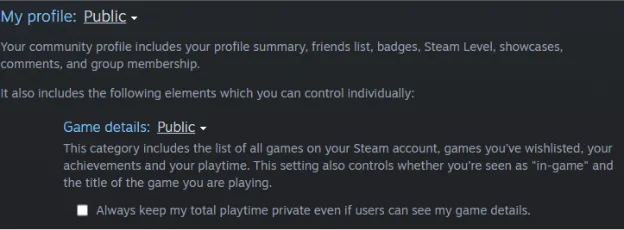
These settings apply to Steam library synchronization; check the visibility conditions before resyncing.
Complete the Steam authorization and return to GeForce NOW to inspect the connection result. Library linking, game ownership checks, and Steam Cloud saves are separate mechanisms. A successful connection does not by itself prove that a specific game has been added or that your latest save reached the cloud.
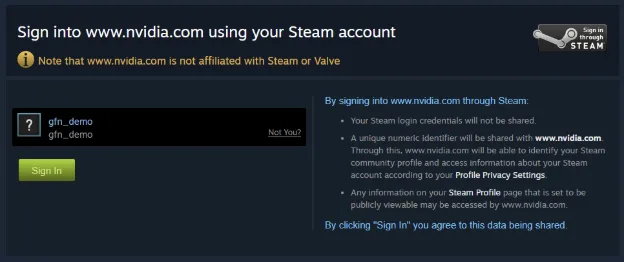
Confirm that the account you authorize owns the game; this example shows the connection flow, not a Nivalis Nights cloud session.
Resync a Newly Purchased or Activated Copy
If you bought or activated Nivalis Nights after connecting Steam, use RESYNC in the Steam connection row. The account-management instructions also note that Steam library synchronization includes games with playtime. If the game is missing, inspect those synchronization conditions before assuming your purchase failed.
Search the catalog for Nivalis Nights and select the Steam-supported listing when available. Add it to your GeForce NOW library and start the cloud session. A session may ask for Steam sign-in, ownership verification, or a license confirmation.
Steam's connection is not described as supporting automatic sign-in. Do not assume that linking the library means the cloud session can never ask you to log into Steam again. Use the same game-owning account when that prompt appears.
Understand What Runs in the Cloud
GeForce NOW streams the game from a remote PC. Its client or supported browser runs on your device; the game's Windows installation runs remotely. Being able to stream it on a Mac or another supported device is different from having a native Nivalis Nights version for that operating system.
Cloud drivers and game updates are managed by the service. Your connection, device, membership, and the game itself still affect the experience. Streaming support is therefore not a promise that every game's performance problem disappears or that every display can use the same resolution and frame rate.
For ordinary PC and Mac streaming, NVIDIA lists 15 Mbps for 720p at 60 FPS and 25 Mbps for 1080p at 60 FPS, with latency below 80 ms to its data center. Those are client-network requirements, not measured Nivalis Nights performance results. Use the service's network check if the session is unstable.
Save Before Ending a Session
Nivalis Nights supports Steam Cloud, end-of-day autosaves, and manual saving from the pause menu. Make a manual save before leaving a cloud session, rather than depending on reaching another day's autosave first.
- Save from the game's pause menu.
- Exit the game normally.
- Allow the session to finish its closing process.
- Check Steam Cloud synchronization before continuing the same progress on another device.
These are practical checkpoints, not a guarantee against every disconnect or conflict. GeForce NOW's own server-side saves and Steam Cloud are separate copies. Do not assume a visible save in one place proves that the latest version has reached the other.
NVIDIA does not support manually uploading a local save file to GeForce NOW. To continue local Steam progress, use Steam Cloud synchronization. The save-location guide covers local files and backups; copying one of those files is not a direct cloud-session upload procedure.
Check a Missing Game or Unexpected Save
If you cannot find the game, verify the current GeForce NOW catalog, the Steam account's ownership, connection status, and RESYNC result. The service notes that not every supported title is playable in every country. A missing search result alone does not establish whether the cause is regional availability, synchronization, or a temporary service issue.
If the cloud session shows older progress, compare save dates and the account used before saving over it. Do not guess which copy should overwrite the other. Preserve the local backup and investigate the synchronization state first.
A free GeForce NOW account's server-side game saves may be deleted after six months without activity; NVIDIA states that this does not delete the digital store's cloud saves. Keep the two storage systems distinct when deciding where your progress is preserved.