
The Nivalis Nights Performance Fix mod by hoho92 is an unofficial plugin aimed at crowded-area CPU load, stutters and menu pauses. The 1.0.5 instructions checked October 8, 2026 require BepInEx 6 Unity IL2CPP for Windows x64, build 788. Initialize the loader, extract the mod beside Nivalis Nights.exe, launch the game, and then restart it once so the worker-thread setting is read on startup.
Confirm the loader reports 14/14 optimizations active, or 15/15 with Tracked Quests HUD, before comparing performance. These are the author's version-specific checks. This site has not benchmarked the plugin, and the author's results do not establish the gain on your hardware. Keep a save backup and a record of the files you add before changing an important installation.
Choose the mod for the symptom it targets
Performance Fix reduces work associated with distant characters, crowd spawning, NPC scheduling, memory cleanup and several interfaces. It is relevant when busy areas hitch or menus freeze while opening long lists. It does not replace the game's system requirements, and it should not be treated as a universal repair for every crash, quest problem or low-frame-rate situation.
Start with an updated base game. The official October 5 Update #3 already improves crowd simulation and animation, addresses a performance issue in The Stacks, and changes footprint-camera rendering. Installing a mod on an older build and comparing it with somebody else's updated game would mix two different changes into the same result.
If the problem is primarily graphics quality or hardware suitability, use the PC performance guide first. Lowering a preset and checking the machine's configuration can answer a different question from whether a CPU-focused plugin helps in a crowded market. For other unofficial tools, the mods directory keeps their purposes separate.
The author describes the changes as preserving gameplay, visuals and saves. Treat that as the plugin's intended behavior and reported result, rather than proof that every future game build or every combination of mods is compatible. A stable baseline and a reversible installation are still useful even for a plugin that is not meant to edit progression.
Prepare the installation folder and backup
Close the game completely before extracting files. Open the installed game's folder through Steam so you are working beside the actual executable, rather than in a download folder or a shortcut location. The installation target in the instructions is the directory containing Nivalis Nights.exe.
Make a manual save and copy your save files to a separate backup location. The game supports manual saves and Steam Cloud, but cloud synchronization is not the same as keeping a pre-installation copy you can restore. Use the save-location guide if you need to identify the appropriate files before proceeding.
Record which loader and plugins are already installed. If you have an existing BepInEx setup, inspect its version and IL2CPP build before replacing anything. A folder named BepInEx does not prove it is the required build. Do not combine several new performance plugins in the first test, because that prevents you from identifying which change caused an improvement or failure.
Keep the downloaded archives until the first successful test is complete. Their directory structure helps distinguish files belonging to the loader from files belonging to Performance Fix. That distinction matters during removal: deleting the entire loader could disable other working plugins, while removing only one plugin does not necessarily restore a game file it adjusted.
Install BepInEx 6 IL2CPP build 788
The specified loader is BepInEx 6 IL2CPP, bleeding-edge build 788, Windows x64. Regular BepInEx 5 is not the author's requirement. Match the full loader identity rather than choosing a package because its name begins with BepInEx or because another game's installation guide uses it.
- Obtain the specified BepInEx build 788 package.
- Extract its contents into the folder containing Nivalis Nights.exe.
- Preserve the archive's folder structure instead of nesting everything inside an extra downloaded-folder name.
- Launch Nivalis Nights once so the loader can initialize.
- Close the game before adding the Performance Fix package.
The first launch is part of installation, not an optional performance test. Initialization establishes the loader's working folders and gives you a chance to check whether the loader itself starts. If the game fails before you add the plugin, resolve the loader setup first rather than blaming Performance Fix for a failure that predates its installation.
If another plugin already uses this exact loader, confirm that setup rather than installing a second copy elsewhere. A DLL placed into an unrelated directory will not become active merely because BepInEx exists somewhere on the machine. Keep the game executable, loader folders and plugin directory in the same intended installation tree.
Add Performance Fix and complete the restart
After loader initialization, obtain the Nivalis Performance Fix release from hoho92’s original release listing. Extract the package into the same game folder beside Nivalis Nights.exe, retaining its included structure. The removal instructions identify its plugin directory as BepInEx/plugins/NivalisPerformanceFix.
Launch the game once with the plugin installed, then close and restart it. The worker-thread setting is read when the game starts, which is why the second launch matters. Do not judge the thread-count change solely from the first session after extraction, and do not interpret the required restart as evidence that installation failed.
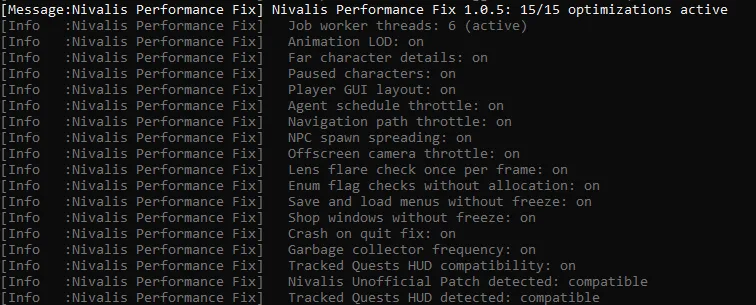
This status includes Tracked Quests HUD, so it shows 15/15 rather than the standard 14/14.
Check the plugin's version and active-optimization status in the loader output before testing a busy scene.
Look for the version-specific console message showing Nivalis Performance Fix 1.0.5: 14/14 optimizations active. With the supported Tracked Quests HUD present, the expected count is 15/15. The extra count refers to a compatibility optimization for that HUD, rather than a missing feature in a normal installation without it.
If that message is absent, stop before layering more plugins onto the setup. Recheck the required loader, archive nesting and final plugin location. Inspect BepInEx/LogOutput.log for loading errors. A changed feeling of smoothness is not a substitute for confirming that the intended plugin actually loaded.
Configure individual changes
The configuration file is BepInEx/config/hoho92.nivalisperformancefix.cfg, created on first launch. It provides a master switch and separate sections for the changes. This lets you isolate a problematic option rather than treating installation and removal as the only possible choices.
For worker threads, the JobWorkers Mode choices are Auto, Manual and Off. The author specifies that Off never touches the game files. Begin with the supplied defaults when establishing your first comparison; do not copy a manual worker count from somebody else's PC without a reason tied to your own test.
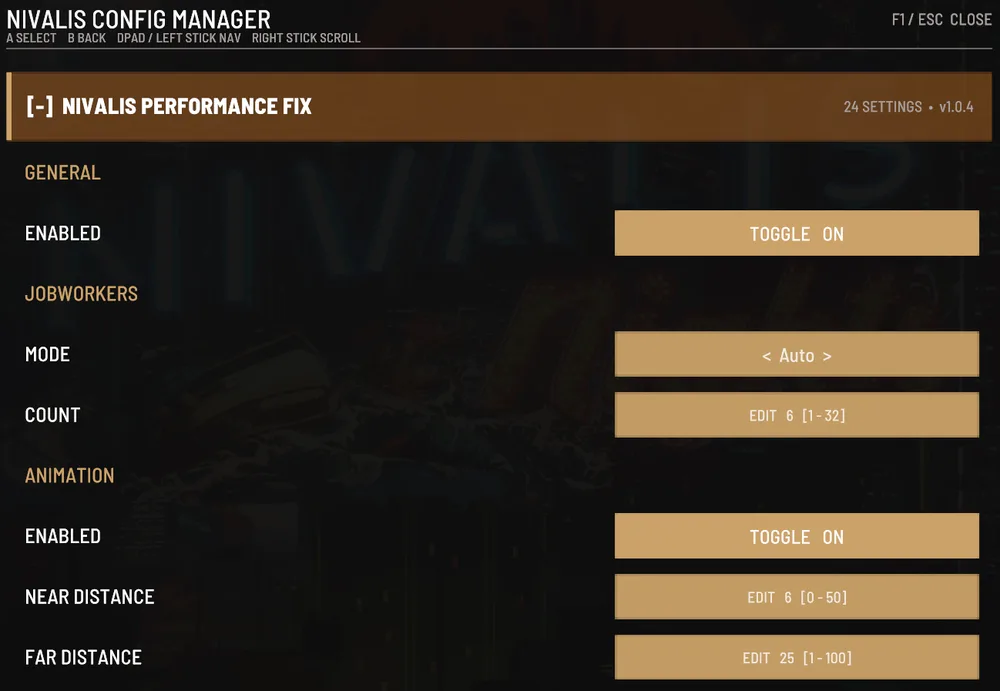
This illustration displays version 1.0.4. Check your installed 1.0.5 release and its live configuration rather than copying the pictured worker count.
The supported Nivalis Config Manager can expose the settings in game through F1. Its use is optional. The author says changes generally apply immediately, while the thread count requires a restart. If you change that option, finish the restart before comparing the next result with the previous session.
Change one setting at a time and keep its previous value. This is especially useful when checking a menu problem separately from a crowded-area hitch. Turning off every optimization at once may establish an overall baseline, but it does not tell you which particular option caused a regression or supplied the useful improvement.
Understand the optimization groups
The plugin's changes fall into several practical groups. Distant and off-screen characters animate less frequently and skip some fine facial behavior. NPC schedules and path reads are performed less often. Worker-thread configuration changes how the engine distributes CPU work, while background-camera and lens-flare changes reduce repeated rendering-related tasks.
Another group addresses intermittent pauses. Background crowds appear over several seconds instead of arriving together in a short burst. Memory cleanup runs less frequently, and several per-frame tasks avoid generating disposable allocations. Those changes target hitches and repeated overhead rather than adding a new graphics preset to the options menu.
The interface changes address Save, Load and shop lists. The author describes building visible rows first, preparing other content in the background and avoiding unnecessary repeated rebuilds. If opening a long save list is your complaint, test that interaction directly instead of using only average frame rate while standing still.
A pause-menu fix and a quit-crash fix are also listed. These are separate behaviors, so check the action you originally wanted repaired. Better performance in one market does not demonstrate that a particular menu issue is gone, and a successful quit does not measure gameplay frame pacing.
Compare your own result without changing the test
Use the same saved location, camera direction, graphics settings and game build for the comparison. Choose an area that reproduces your original symptom. If a crowded market was the problem, comparing an empty room before installation with that market afterward gives an unhelpful result even when both frame counters are accurate.
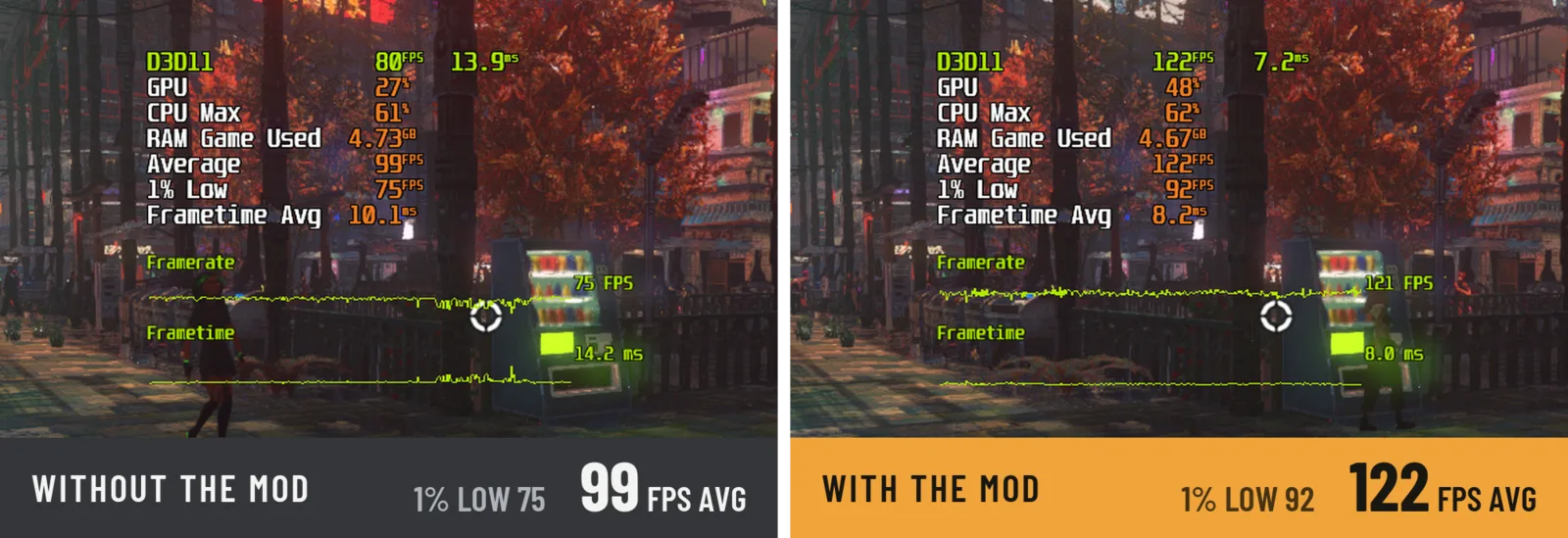
An example benchmark on the mod creator’s PC; it does not predict the frame rate on your hardware.
The author's Update #3 example reports a crowded-market average rising from 99 to 122 FPS on their PC, and a separate Seaside Boardwalk example from 111 to 126 FPS. Those numbers describe that setup. They are not expected minimums, guaranteed percentage improvements or evidence that your machine will reach the same frame rate.
Watch for interruptions as well as the average. A setup can display a higher average while still having the particular pause you care about. Repeat the menu opening or crowd transition that caused trouble, note whether it changes, and keep the before-and-after settings comparable. If you install another mod midway through the test, begin the comparison again with the new combination clearly identified.
The author also notes an unrelated mouse-polling issue at 2000 Hz or higher and suggests 1000 Hz. Treat that as a separate variable if camera-turning performance is your symptom. Changing polling rate and installing the plugin simultaneously would prevent you from knowing which adjustment affected the result.
Check overlapping unofficial mods
The author reports testing Performance Fix with Nivalis Unofficial Patch, Nivalis Config Manager and Tracked Quests HUD. That is a named compatibility set, not a statement that every Nexus download can be combined. Recheck the release notes for the versions you actually have.
With Nivalis Unofficial Patch 0.3.13, the Performance Fix author recommends setting Performance LightingRefreshCache to false in hvizeu.nivalis.unofficialpatch.cfg. The author observed a performance cost from that option in their busy-market test. The recommendation is tied to that patch version and overlap; it is not a general instruction to disable unrelated lighting settings in the base game.
The author says the Unofficial Patch turns off overlapping performance options when the two are installed together, while retaining its other fixes. Keep that behavior distinct from the specific LightingRefreshCache recommendation. If your configuration differs, inspect the actual startup output rather than assuming an old compatibility description matches a newer release.
After a game update or Steam verification
A game update or Steam file verification can restore the thread setting. The plugin then applies it again and requests another restart. Complete that restart before treating a changed result as a permanent regression. The installation's status needs to be checked again after maintenance, even when you did not deliberately remove a mod.
If an update changes a method the plugin patches, the author says the affected optimization disables itself and the console identifies it. Read those messages. A plugin can load while only some changes remain active, so the presence of its name alone is weaker evidence than the expected status count for the documented version.
Do not assume ongoing updates are guaranteed. The author describes maintaining the project during their own playthrough and notes that updates may stop afterward. If a future build no longer matches the release's supported behavior, disable the plugin and use the updated base game while checking for a compatible version.
Uninstall and restore the original thread setting
Close Nivalis Nights, remove BepInEx/plugins/NivalisPerformanceFix, and run Steam's Verify integrity of game files for the game. Removing the plugin folder stops its loading; verification restores the original thread setting. Both actions are part of the author's uninstall procedure.
Leave unrelated plugins and their loader intact if you intend to keep using them. After verification, launch the game and confirm that Performance Fix no longer appears as loaded. Compare the same location or menu again so you can tell whether the original symptom returns under the restored setup.
File verification does not reverse values changed by a separate trainer or save editor. If other tools were involved, account for their changes separately using the backup from before those edits. For Performance Fix itself, the concrete removal target and Steam verification provide a clear route back to the original game-file configuration.
Original downloads and release documentation
Use BepInEx 6 IL2CPP Windows x64 build 788 for the specified loader. Obtain the plugin through hoho92’s Nexus release or the author’s GitHub releases. Read the author’s installation and compatibility documentation when your release differs from 1.0.5. The official update notes describe base-game changes separately.