
The available custom-model toolset for Nivalis Nights is Object Framework and Object Studio, which adds furniture models and object packs. A working tool to swap Ava or other NPC character models has not been verified.
Players need Object Framework Runtime plus a furniture pack. Creators use Object Studio SDK outside the game and install the Runtime separately for in-game testing. The Runtime alone adds no furniture.
Choose the Runtime, Pack or Creator SDK
Swipe horizontally to see all columns.
| Your goal | Downloads to use |
|---|---|
| Play with custom furniture | Object Framework Runtime 0.3.7 and the chosen object pack |
| Try the supplied furniture examples | Runtime and optional Night Market Workshop 1.0.1 |
| Make your own furniture collection | Object Studio SDK 0.3.7 for Windows; Runtime for testing |
The example pack contains Henri Table, ION LANDS Totem, Noodle UFO Lamp, and Last Order Statue. It requires Runtime 0.3.1 or newer. Those are four sample objects, not a list of every piece of furniture supported by the game.
The SDK is a Windows project editor and authoring bundle. Do not import the entire SDK as a game mod. Extract it outside the game and keep its editable project files for future changes.
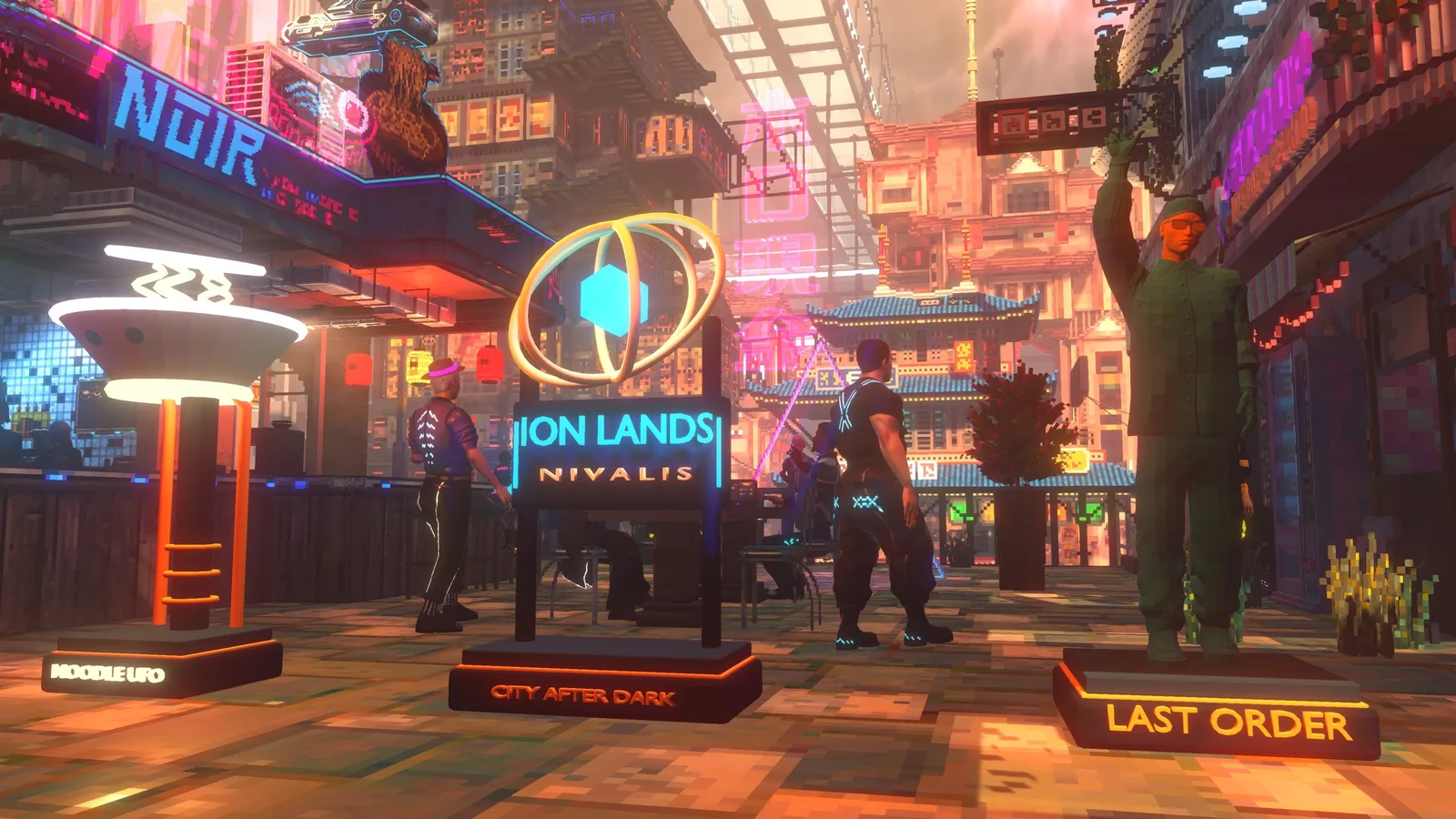
The custom object collection shown in game; this is furniture, not swapped NPC models.
Check the Game Build Before Installing
The author’s main description names Steam build 25738165, while the Runtime 0.3.7 file description still names 25680465. That conflict prevents a blanket compatibility guarantee for every installation described as Update #3.
Compare your installed build with the author’s current requirements before applying the Runtime. The listed loader is BepInEx 6 for Windows x64 IL2CPP, supplied separately. Do not replace it with an unrelated Mono or 32-bit build because the package has a similar name.
Back up your saves before changing a furniture setup. The author has tested the example collection and Studio-to-LUZ workflow in game; that does not establish every third-party pack, native template, or save migration as tested.
Install a Pack with LUZ Civic Terminal
- Close Nivalis Nights. On a first-time LUZ setup, import your existing installation before applying a profile.
- If needed, use Maintenance → Install recommended BepInEx. Start the game yourself once to generate interop files, then close it.
- Use Registry → Import ZIP / DLL to import the Runtime ZIP.
- Import the furniture-pack ZIP into the same profile and enable both packages.
- Resolve the profile’s reported issues, choose Apply profile, then start the game yourself.
If Apply is unavailable because the project requires hvizeu.nivalis.furnishings ≥ 0.3.1, update the Runtime stored inside that LUZ profile. Manually replacing a DLL in the game folder does not update the package in the launcher’s profile.
An object pack can also require an additional behavior plugin. Read that pack’s requirements instead of assuming the Runtime covers every interaction it adds.
Install the Runtime and Pack Manually
With the game closed, extract the Runtime ZIP beside Nivalis Nights.exe. Its two DLLs, manifest.json, and icon.png belong under BepInEx/plugins/NivalisFurnishings. Extract the object-pack ZIP into the same game folder.
Avoid a nested BepInEx/BepInEx folder. When updating, replace the existing Runtime files in their current location, preserve settings, and keep one installed copy of each plugin DLL. Then start the game yourself.
These folder instructions install custom objects. They do not identify an NPC mesh-replacement directory or authorize arbitrary game-file overwrites.
Build a Furniture Collection in Object Studio
Extract the entire SDK outside the game and open NivalisObjectStudio.exe. Create a new project or choose Create from Night Market Workshop to make an editable copy with new IDs.
Add OBJ meshes or existing blueprints and edit each object’s name, texture, icon, scale, tint, and behavior template. Tables expose serving height, collision, and chair positions; decorations can use emission textures and a point light.
Use triangulated OBJ meshes with UVs and normals, plus PNG images. Studio previews its supported texture and lighting settings; it does not reproduce arbitrary Blender shader graphs. A decorative appliance model does not automatically become a functioning production machine. New interactive behavior can require a separate C# plugin.
The Shops tab controls base price, comfort or storage, buying and selling, vendor selection, initial stock, and restocking. Initial stock is delivered once per save. To read individual vendor information, connect the game and load a save once with the Runtime installed.
Export the Pack and Keep Its Editable Project
- Build ZIP makes one collection package to share or install.
- Deploy project installs it into the detected game with the game closed and keeps a backup.
- Send to LUZ builds the project and opens its import confirmation. Confirm the import, include the Runtime in the same profile, then apply it with the game closed.
Keep the editable project folder after exporting. A ZIP is the player package; the project is what you reopen to make revisions. Preserve permanent project and object IDs when updating an existing release. Duplicate creates a separate object rather than updating the original.
Check Missing Objects and Save Compatibility
Restart the game after changing packs. Keep packs installed for saves that contain their objects, and make a backup before removing them. A loose showcase pack and a separate copy of the example project can contain visually similar objects with different IDs, causing apparent duplicates.
For missing objects or registration errors, inspect BepInEx/Furnishings/validation.txt and BepInEx/LogOutput.log. Record your game build, Runtime and Studio versions, and the step that failed when reporting the problem.
The optional Furniture Lab inspection tool is not needed to play with packs. Its JSON reports are reference information; they are not automatically importable furniture collections or model exports.