
For a 21:9 or 32:9 screen, the unofficial Nivalis Ultrawide mod adds a central HUD safe area and a separate UI-size control. It places two sliders beneath FOV in Settings → Graphics. This addresses shopping lists, quest text, compass information, and menus pushed toward the screen edges. It is not an FPS improvement or a resolution-setting guide.
The author's version 1.0.0 was uploaded on October 4, before October 5's Update #3. Its later-build compatibility has not been verified here. The requirements specify Steam on Windows and BepInEx 6.0.0-be.788, Unity IL2CPP, Windows x64. Linux and Steam Deck are untested.
Choose the Safe Area and UI Scale Separately
The safe-area slider controls how far the HUD extends across the screen. UI scale controls the size of interface elements. A smaller central area does not mean you must make every label smaller too.
Swipe horizontally to see all columns.
| Control | Range or setting | Result described by the author |
|---|---|---|
| Safe area width | 40%–100% | Constrains the HUD and in-game menu content horizontally |
| Safe area width | 100%, displayed as Off | Returns the HUD to the screen edges |
| Default safe area on 32:9 | 50% | Uses a central 16:9 area |
| Default safe area on 21:9 | 75% | Uses a central 16:9 area |
| UI scale | 50%–150% | Changes interface size |
| UI scale | 100% | Uses the game's normal size |
The author says the sliders apply as you drag and remember their settings. On a 16:9 display, the mod is described as making no change. Menu backgrounds, dimming, and blur remain across the full screen. The main menu and map are intentionally excluded from the safe-area layout changes.
Install the Required Loader
Skip this part if the correct BepInEx 6 IL2CPP build is already installed for the game. Do not substitute BepInEx 5 or a Mono package: the author's requirement is the Windows x64 IL2CPP build numbered 788.
- In Steam, right-click Nivalis Nights and choose Manage → Browse local files.
- Extract the complete required BepInEx archive into the folder containing the game's executable.
- Confirm that the BepInEx folder and winhttp.dll are beside the executable.
- Start the game once and wait for the main menu.
- Close the game before adding the mod.
The author warns that this first loader startup can take several minutes while it prepares files, with the window appearing frozen. This initial preparation is different from a mod that loaded but placed the HUD incorrectly. Follow the loader's startup instructions before diagnosing missing sliders.
Vortex's built-in BepInEx support is described as targeting the older BepInEx 5. The documented path for this mod is manual installation of the required build.
Add the Ultrawide Plugin
Extract the mod's main package into the same game folder. Its DLL should be at:
BepInEx/plugins/NivalisUltrawide/NivalisUltrawide.dll
Start the game and open Settings → Graphics. Look below FOV for Safe area width and UI scale. The labels are English even when the game's selected language differs.
Settings opened from the main menu can contain the sliders, but the safe area's effect is visible during gameplay. Enter the game to check where the shopping list, quest list, compass, and top icons sit. The main menu and map staying full width is expected behavior, rather than proof of a failed installation.
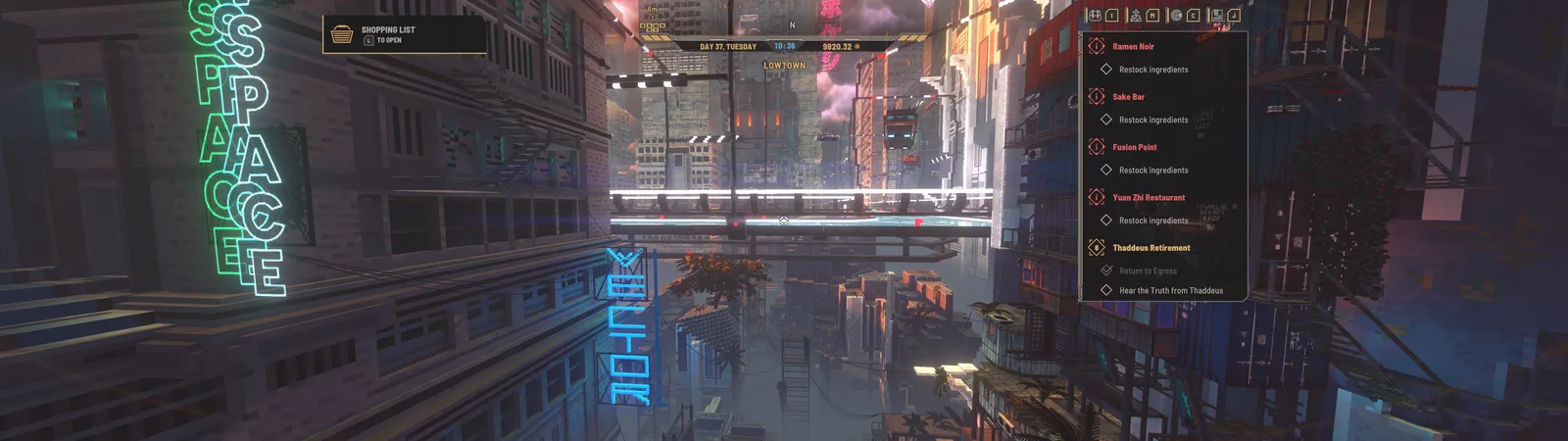
The wider scene remains visible while the HUD occupies a narrower central area.
Diagnose Missing Sliders or a Misaligned Screen
Open BepInEx/LogOutput.log and look for the mod's loaded message. The author specifies Nivalis Ultrawide 1.0.0 loaded. If it is absent, check whether BepInEx is running and whether it is the required build before adjusting layout values.
Approximately 20 seconds after gameplay starts, the author says the log records a diagnostic block beginning with [check]. Entries marked NOT FOUND or FAILED narrow down missing interface elements. Include that block when reporting a problem; a screenshot of the title screen alone does not describe which gameplay element failed.
If one screen looks wrong, set the safe-area width to 100% and compare it with the constrained view. That isolates the layout change without replacing every mod file. For a screen you want excluded, the author's configuration offers ExtraExcludeElements in:
BepInEx/config/nivalis.ultrawide.cfg
To find an element's name, set ReportKey in the Developer section, open the affected screen, press that key, and inspect the [ui] lines in the log. Use the actual reported element name rather than inventing one. Optional hotkeys are unset by default, so this workflow does not assume a preassigned reporting key.
Update or Remove the Plugin
The author's update procedure is to extract the newer package over the existing installation; settings are described as being retained. Removal is limited to the BepInEx/plugins/NivalisUltrawide folder.
The author describes the mod as changing runtime layout values without modifying game files, saves, or using the internet. That is an author statement, not a site-tested compatibility guarantee. Keep game-update and plugin-version information with any issue report, particularly because the recorded release predates Update #3.