
The available Nivalis Nights Cheat Engine table is NivalisNights.ct, published for the Steam game. Open the table in Cheat Engine, select the running game through the PC icon, retain the table's entries, and enable only the option you intend to check. The money field is labelled Edit Money (Visual*100), so its input should not be confused with a field accepting the displayed currency amount directly.
Compatibility is the important limitation. Early users reported that pausing time did not work, and that Knowledge, Rank, and Gravity appeared unchanged. The table author acknowledged those reports after a game update. The material available for this guide does not establish that the table works with October 5's Update #3. A table that opens successfully is not proof that its scripts still affect the current game correctly.
Identify the Table Before Opening It
Check that you are looking at a Cheat Engine table with the .ct extension. The published attachment is called NivalisNights.ct and is listed at 23.46 KiB. That name identifies the table discussed here; the file size is a description of the published attachment, not a guarantee that an arbitrary similarly named download is the same file.
This workflow operates through Cheat Engine's process selection and table entries. The separate in-game Trainer uses a mod loader and its own panel. Instructions for copying a trainer DLL, choosing a loader variant, or opening an F1 panel do not describe how to attach this table. Keep the two workflows separate when deciding what you downloaded and which instructions to follow.
The table was posted in response to a launch-build request. That request asked for several functions, including food-preservation and relationship changes, but a request is not a feature list. Use the actual table entries below to understand what the author published. Do not assume every feature requested by another player became part of the attachment.
Before making an edit, preserve a save you can return to. Nivalis Nights supports manual saves as well as its daily autosave. Use the existing save-location guide for the game's save files. Keeping an earlier copy gives you a meaningful comparison if an edit produces an unwanted result; this table's instructions do not describe a command that reconstructs your previous game state.
Attach the Table to the Running Game
The published setup sequence uses Cheat Engine's normal table workflow:
- Install Cheat Engine and start Nivalis Nights.
- Open NivalisNights.ct in Cheat Engine by double-clicking the table file.
- Use the PC icon to select the running game process.
- Retain the table's list of entries when selecting the process.
- Enable the selected option through its checkbox or the activation value specified by the table.
The forum's instruction to change a value from zero to one concerns activation controls. It should not be interpreted as an instruction to replace every editable field with one. An on/off control and a numerical editor have different purposes. Read the selected entry before changing it, especially when a field includes a scaling note.
The published material does not specify a verified executable filename, a mandatory Cheat Engine version, a memory address, or a numeric data type for this walkthrough. Select the process belonging to your running game rather than relying on a guessed process name. If you cannot identify it, resolve that step before enabling entries; a table being visible in the application does not establish which process it targets.
Keep the first check narrow. Open the table, attach it, and inspect the entries before making several changes together. If you immediately enable time, fuel, movement, discounts, and money editing, a later unexpected result becomes harder to connect to a particular option. A single change gives you a clear question to answer in the game.
Read the Nine Published Entries
The table lists nine controls. The descriptions here distinguish the function suggested by each label from what is actually established about its behavior on later builds.
Swipe horizontally to see all columns.
| Published entry | Intended area | Important limitation |
|---|---|---|
| Pause/Unpause Time | Time progression | Early users reported failure; do not rely on it to prevent curfew. |
| Disable Fuel Consumption | Boat fuel | Listed by the author; current-build behavior is unverified. |
| Max Vendor Discount | Vendor pricing | No supported discount percentage or universal final price is supplied. |
| Edit Money (Visual*100) | Displayed funds | The label contains a scaling factor; distinguish the table value from the visible balance. |
| Edit Knowledge | An internal field named Knowledge | Its exact relationship to the game's progression is not established here. |
| Edit Rank | An internal field named Rank | Its game meaning and successful effect remain unconfirmed. |
| Edit Gravity | A field associated with gravity | Users reported no apparent change; no recommended value is established. |
| Edit Movement Speed | Movement | No verified default, safe range, or current-build multiplier is supplied. |
| Edit Sprint Speed | Sprinting | A separate entry from movement speed; no tested range is supplied. |
A label is enough to identify the control, but not enough to promise an outcome. In particular, Knowledge and Rank should not be presented as confirmed shortcuts to a particular business skill, relationship, or quest stage. Their names alone do not establish that connection. Changing them without knowing what they control would make it harder to evaluate whether the result matches your goal.
The two movement entries also deserve separate attention. The author lists movement and sprint speed individually. That is not evidence that they accept identical values or that one automatically changes the other. If you choose to examine either field, keep the other unchanged so you can distinguish the two effects.
Interpret the Money Field's Scaling Note
The money label explicitly says that the table value is the visual amount multiplied by one hundred. Read that as a unit distinction before entering a number. A field using a scaled amount is different from an editor that asks for the currency amount exactly as it appears on screen.
First identify the balance the game currently displays. Then inspect what the attached table reads for the money entry. Compare those two values using the label's factor before writing anything. If they do not have the expected relationship, stop at that comparison. Entering a larger amount does not resolve a mismatch between the displayed balance and the value the table is reading.
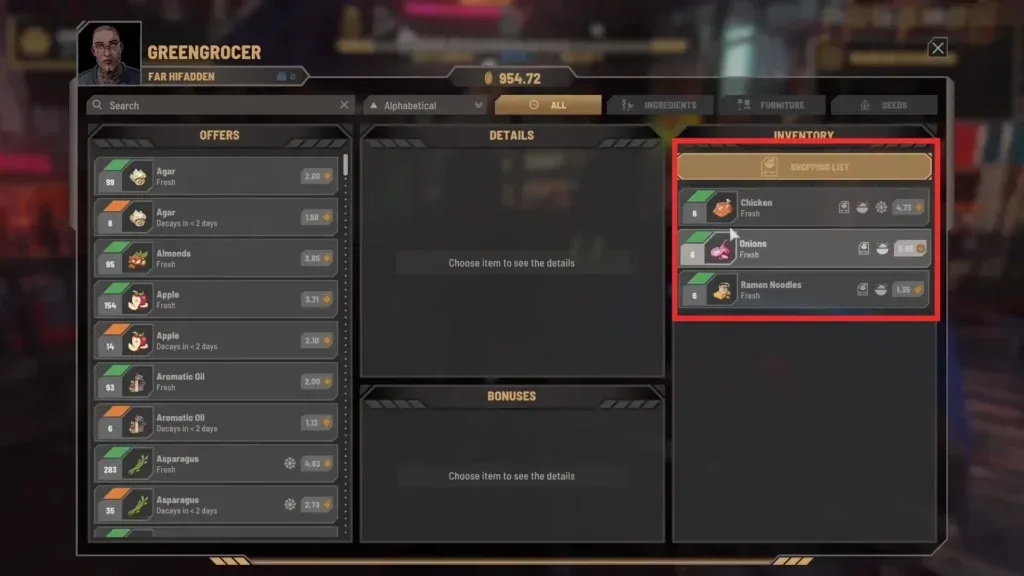
Compare the balance shown at the top of the game interface with the table field before editing; this is an ordinary trading screen.
The useful check is the resulting balance in the game. A number visible only inside Cheat Engine does not establish that the intended game field changed. After a deliberate, limited edit, return to the game and inspect the funds display. Keep the intended displayed amount and the scaled table amount distinct when judging the result.
Do not borrow the input convention from the separate Trainer page. That tool has its own money editor and instructions. A value accepted by one editor does not establish the input unit of another. Here, the scaling note attached to the Cheat Engine entry is the specific information you have.
The available instructions do not confirm maximum supported balances, negative-value behavior, or a universal refresh action. This guide therefore does not recommend an arbitrary large number or tell you to buy something as a guaranteed way to force an update. If the displayed amount remains unchanged, record the values you compared and treat that as a failed check rather than continuing to overwrite the field.
Understand the Reported Time Failure
The time toggle has the clearest recorded problem. One user reported that pausing did not work on October 1. Another reported the same issue on October 2, alongside problems with Knowledge, Rank, and Gravity. The author then explained that the original observation came from only a few minutes of play and acknowledged that the game had received an update.
That distinction matters because observing a stopped HUD timer is narrower than verifying every system affected by the passage of time. The author's early observation included the timer and the absence of a curfew dialogue during that short session. It did not establish that every updated save would behave the same way throughout a full day.
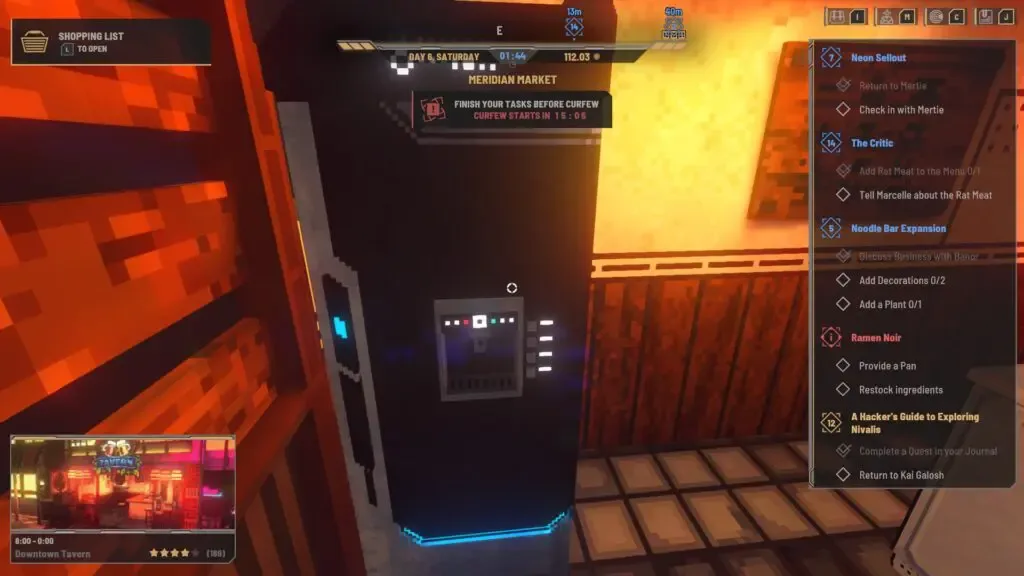
The clock and curfew warning are separate visible checks; this screenshot does not demonstrate an active time cheat.
Keep normal curfew planning in place if you are examining this entry. Do not start a journey that depends on the time toggle working, then discover the problem when the evening transition occurs. The published failure reports are a reason to check the behavior locally before depending on it, rather than a basis for promising that an activation checkbox prevents the night's restrictions.
There is no verified repair sequence for this failure in the retained discussion. The author said another check was needed after the update; that statement is not a released fix. Reattaching the same table repeatedly cannot be presented as a confirmed solution to the reported time problem.
Separate Attachment Problems from Feature Failures
Use the last successful step to describe a problem. If the table has not opened, you have not reached process selection. If it is open but attached to the wrong process, you have not established a valid game target. If the correct target is selected but an entry has no visible effect, the problem is narrower than opening the attachment.
Swipe horizontally to see all columns.
| What you can observe | What the observation establishes | What it does not establish |
|---|---|---|
| The table opens | Cheat Engine can read the attachment | Compatibility with the running game build |
| The intended process is selected | You have selected the game target | Every table entry is valid |
| An activation control changes | The table's activation state changed | The corresponding game behavior changed |
| The money display changes as intended | That specific visible result occurred | Time, fuel, movement, or other entries also work |
| One entry has no effect | That check failed in your current setup | Every other entry is necessarily broken |
This distinction prevents two common mistakes: treating an open table as complete success, or treating one failed toggle as evidence about all nine entries. Keep any successful observation limited to the feature you actually checked. A working money edit does not resolve the reported time failure.
For the fuel entry, the relevant behavior is fuel consumption while using the boat. For vendor discounts, it is the transaction's pricing behavior. The table does not supply a fixed discount value or a tested fuel routine, so do not invent a numerical pass condition. Record what you observe and preserve the current-build uncertainty.
Record a Useful Compatibility Check
If you report a failure, include the game build or update, the table filename, the exact entry, and the difference between the table state and the game state. For money, include whether the displayed balance and scaled value matched before the edit. For time, describe whether the HUD clock stopped and whether the game still advanced toward curfew.
Keep the report tied to a single attempt. State which process-selection step you completed and which control you changed. Describing an option as “not working” without its visible result leaves out whether the issue concerns attachment, activation, value interpretation, or behavior after activation.
October 5's Update #3 is later than the October 1–3 discussion retained here. The dated reports explain why compatibility needs checking; they do not certify this later update. Until a compatible table and its behavior are established, preserve your normal save and route plans, and avoid depending on an unverified toggle to protect progress.